Edges become clearer, not harsher
Inspect hair, glasses, eyes, and fabric. Strong halos or crunchy outlines mean sharpening has gone too far.
Use enhancement when the photo is mostly intact but soft, grainy, faded, or scanned at a low resolution. It is especially useful before printing or sharing with relatives.
Open the enhance toolEnhancement cannot make a tiny face perfectly accurate. If the original scan is extremely small, scan again at a higher resolution before restoring.
Enhancement can clarify captured detail. It cannot verify detail that was never present in the scan.
Inspect hair, glasses, eyes, and fabric. Strong halos or crunchy outlines mean sharpening has gone too far.
Compare facial proportions with the source. A smooth, attractive face is still a failure if it no longer resembles the person.
If the source is a thumbnail or messaging-app copy, locate the print or original file before trying repeated enhancement.
This illustrated family portrait shows the kind of contrast and face-detail check to make. Tiny or motion-blurred faces may still remain uncertain.
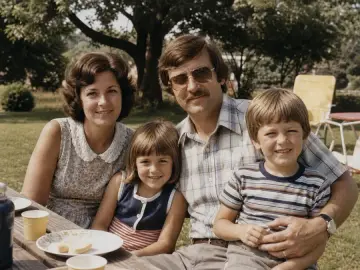
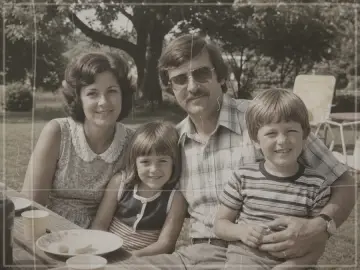
This illustrated example shows stronger contrast and clearer faces while keeping the composition and outdoor setting recognizable.
It can improve presentation, but it cannot verify features that were not captured. A higher-resolution scan is the safer fix.
When the source is too soft, a model may invent facial detail. Compare the result with the original and reject identity changes.
Yes, after repair. Review the result at the intended print size before paying for a final export.
Keep exploring
Move from the focused tool to the guide, a safer review path, or the next step in the restoration workflow.