Use upscaling after the photo is already repaired or reasonably clean. The goal is a larger, cleaner archive copy that still looks like the original photo.
Upscaling improves a good source more than a bad one. If scratches or stains are the problem, repair the photo first, then upscale the restored result. Exports are capped at 2048 pixels on the long edge with paid credits or Pro and 1024 pixels for watermarked starter-credit results, and the tool never enlarges past what the restoration returns, so the file can be smaller than the cap.
01Choose photo
02Sign in and restore
03Compare before and after
No photo nearby? Try a sample
Framed gifts
Family reunion displays
Cleaner digital archives
Upscaling improves a good source more than a bad one. If scratches or stains are the problem, repair the photo first, then upscale the restored result. Exports are capped at 2048 pixels on the long edge with paid credits or Pro and 1024 pixels for watermarked starter-credit results, and the tool never enlarges past what the restoration returns, so the file can be smaller than the cap.
Plan the output before you upscale
Choose a target size first, then confirm that the enlarged result still looks faithful at that size.
Measure the file, not the ceiling
A paid export is capped at 2048 pixels on the long edge and a watermarked starter-credit result at 1024, and the tool never enlarges past what the restoration returns, so the download is often smaller. Divide the downloaded width and height — after any cropping — by the print size in inches to get the pixels per inch you will actually get on each side.
Repair before enlarging
Upscaling also enlarges scratches, stains, compression blocks, and invented facial detail. Clean the source first.
Inspect at final size
Zoom to the intended print dimensions and check eyes, hair, edges, grain, and background texture before ordering a print.
Before and after examples
These illustrated portrait and wedding samples are useful for checking faces and fine edges before choosing a larger print.
Before
After
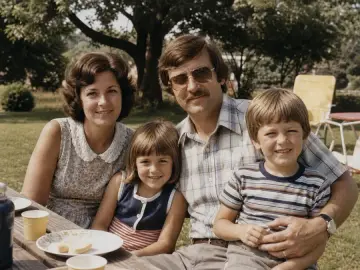
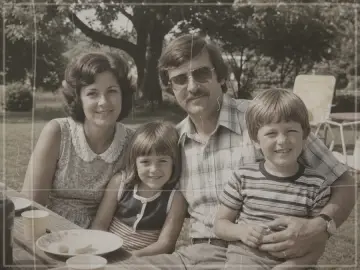
Faded family portrait
This illustrated example shows stronger contrast and clearer faces while keeping the composition and outdoor setting recognizable.
Before
After
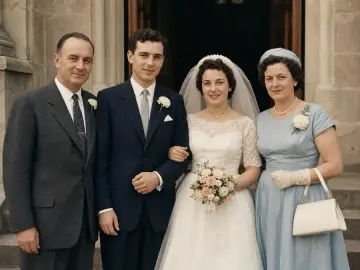
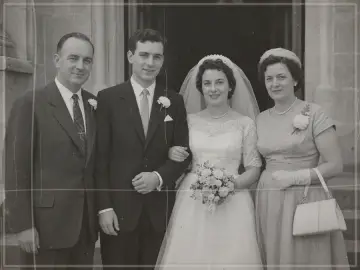
Black and white wedding photo
This illustrated example shows one restrained color interpretation. The original scan remains the historical reference.
Questions about this workflow
Can this produce an 8×10 print at 300 pixels per inch?+
No. A paid export is capped at 2048 pixels on the long edge and is often smaller, while a 300-pixel-per-inch 8×10 needs roughly 3,000 on the long side. Read the dimensions of the file you downloaded and decide from those, not from the cap.
Does upscaling fix scratches?+
No. Repair scratches, stains, and folds first; otherwise the enlarged file can make those defects more visible.
Can upscaling make a tiny face accurate?+
It can make the file larger, but it cannot verify missing facial information. Compare identity with the original at every step.
Keep exploring
Choose the next old photo restoration workflow
Move from the focused tool to the guide, a safer review path, or the next step in the restoration workflow.